Backing up Browser Data
Backing up Browser Data - Bookmarks / Favourites and Saved Passwords
For NVSD Staff
If you are using Microsoft Edge:
Open the browser. At the top right corner, sign in to the browser using your SD44 login credentials (if not already logged in).
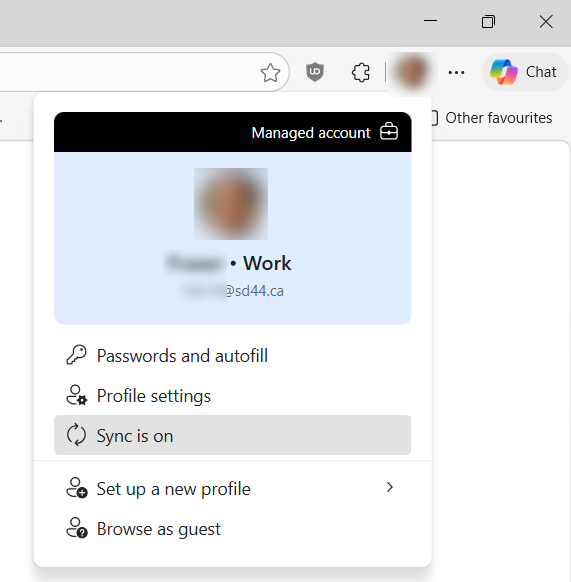
Click your profile image to ensure that "Sync is on" is displayed.
If it says "Not syncing", click the Turn on sync button:
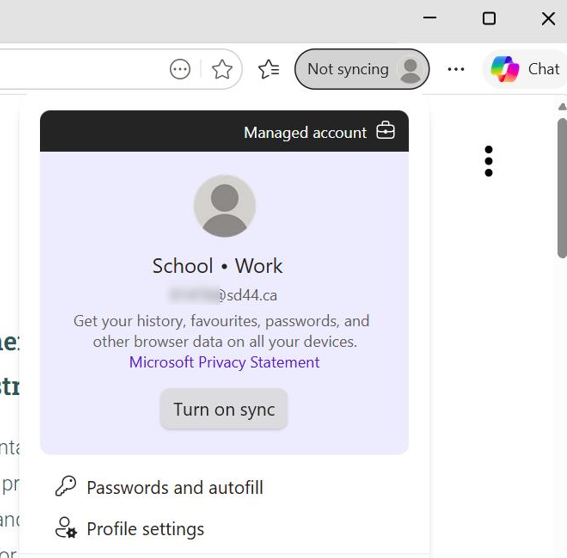
Any pages you have saved as favourites, and any passwords that are saved in the browser, will be automatically synced, and will be available if you sign into Microsoft Edge again on any device.
If you are using Firefox:
As we do not support the use of a Mozilla Account for browser synchronization, you will need to manually export your bookmarks and saved passwords, and save them to your OneDrive. However, passwords can not be imported from a file, only from another browser. For this reason, the simplest way to transfer browser data for Firefox is to import them into Edge, ensuring you are signed in to Edge using your district account to sync the data (see above).
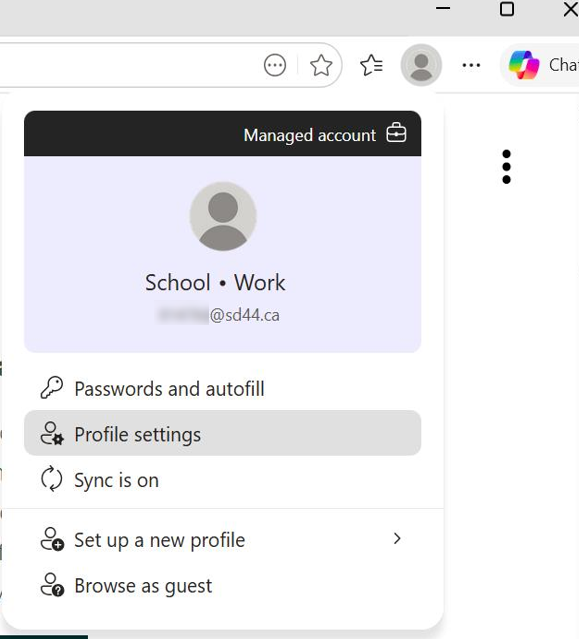
1. Open Edge. Click the profile image in the top right, then click Profile settings:
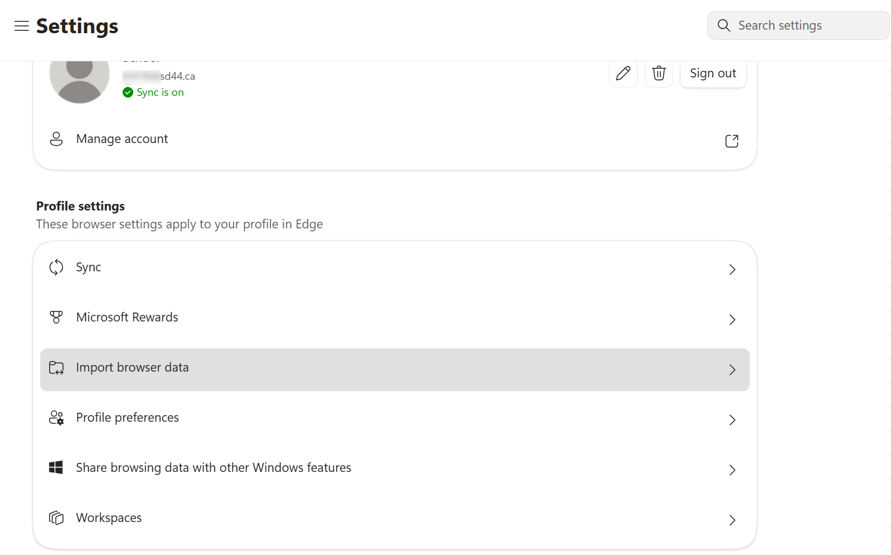
2. Under Profile settings, click Import browser data:
3. Click the Import button beside Import data from Firefox.
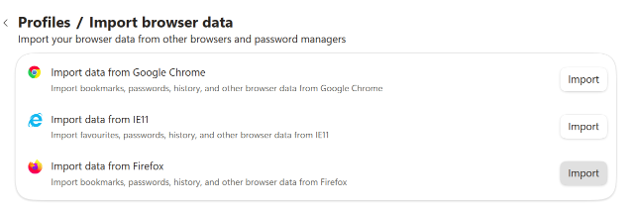
Whenever you need to import your browser data back to Firefox, sign into Edge on the device first, then open Firefox, and follow the steps below.
1.Open Firefox. At the top right, click the three lines to open the menu, and select Bookmarks.
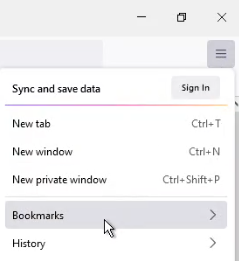
2. Click Manage bookmarks at the bottom.
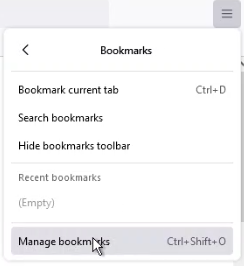
3. Select Import and Backup at the top of the window, then click Import Data from Another Browser.
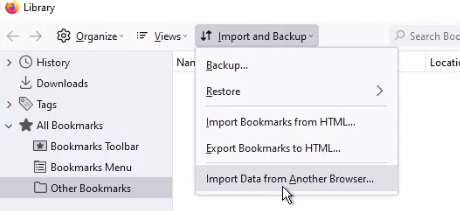
4. In the window that appears, ensure Microsoft Edge is selected, then click Next, Next, then Finish.